Docs / the manual
Set it up in a browser. Run it every day from your laptop.
Lucebox runs headless on Ubuntu Server, so you never plug in a monitor. The first run happens at
lucebox.com/setup over encrypted Bluetooth, everything after that in Lucebox Manage,
a web page served by the workstation itself, and your apps stay on your laptop. Part one is done once. Part two is
what you do from then on, with the actual screens.
Setup 4 steps Pair, Wi-Fi, account, Tailscale In Chrome or Edge, over encrypted Bluetooth
Manage 4 buttons Check, install, start, test Runs on the workstation, nothing in the cloud
Apps 7 apps One click each through Lucebox Connect Or any OpenAI or Anthropic compatible client
Privacy 0 Prompts or replies stored Monitoring counts tokens only, the ledger never leaves the workstation
Your side
A laptop or a phone.
- Chrome or Edgelucebox.com/setup for the first run, Lucebox Manage after that
- Your appsClaude Code, Codex, OpenCode and more, opened through Lucebox Connect
- Nothing elseNo CLI, no agent, no account with us
Bluetooth First run only. Encrypted with the per-unit setup code
Wi-Fi or Ethernet Manage and the API at http://lucebox.local on your network
Tailscale Optional. The same access from any network, no open router port
The workstation
Lucebox, headless.
- Ubuntu ServerEngine and qualified model profiles installed before shipping
- Lucebox ManageThe web page that checks, installs, starts and monitors
- Private APIOpenAI and Anthropic compatible, private addresses only
lucebox.com never proxies Manage traffic and never receives its token.
Part one
First run
Done once, in about ten minutes, from a browser. Nothing here is repeated unless you move the workstation to a new network.
01Unbox
Plug in power. Nothing else.
Your desk, or any room with airflow - In the box
- The workstation, its power cord, and the setup card with the per-unit setup code
- Needs
- A wall socket. Wi-Fi is configured in the next steps, Ethernet is optional
- Pre-installed
- Ubuntu Server, the Lucebox engine, the qualified model profiles. Manage verifies them on first run
02Setup
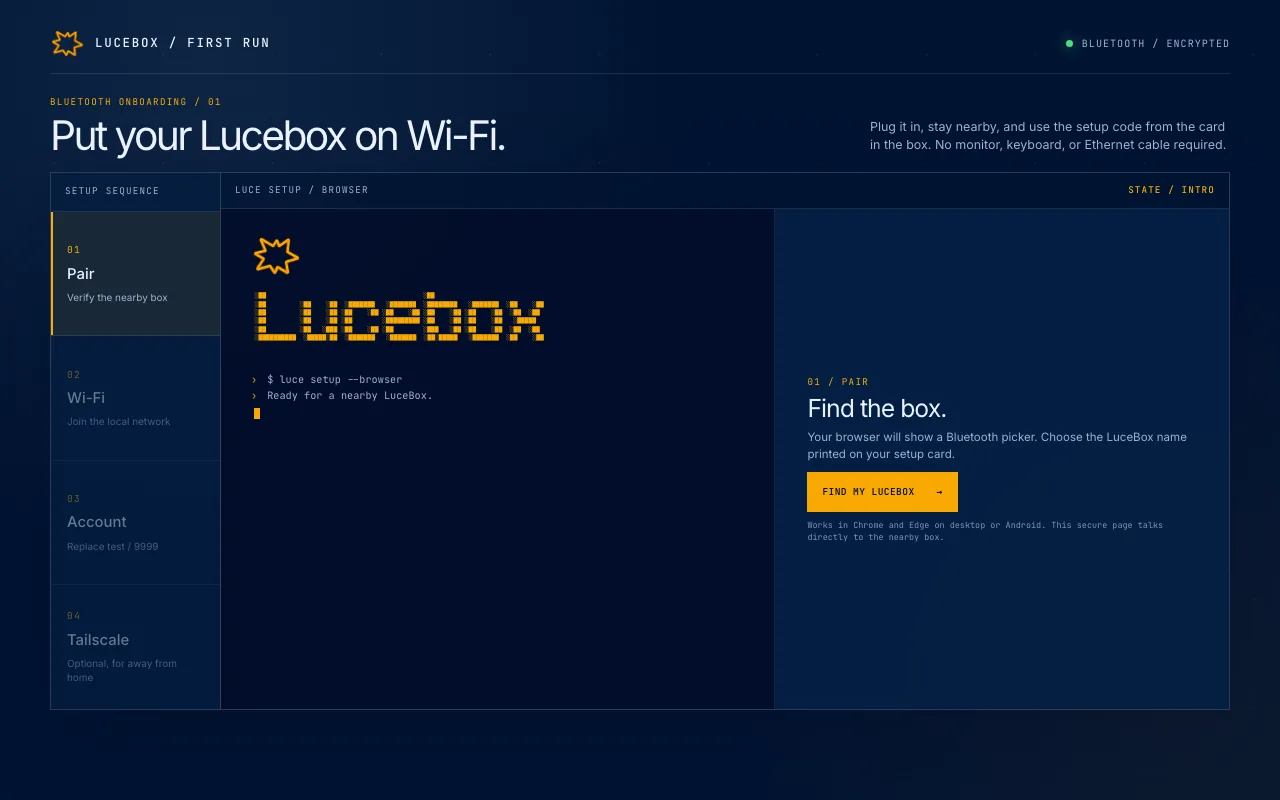
Open lucebox.com/setup and find the workstation.
In Chrome or Edge on a laptop or an Android phone, the setup page shows a Bluetooth picker. Choose the name printed on your card and type its setup code. The code derives the session key, so everything after that is encrypted end to end between your browser and the workstation.
lucebox.com/setup | Browser | Chrome or Edge, desktop or Android. Nothing to install |
| Security | PBKDF2-SHA256 key from the per-unit code, AES-256-GCM on every command. Five wrong codes lock the workstation for a while |
| Privacy | The setup code never reaches lucebox.com. The page is the Bluetooth client, the website stores nothing |
03Setup
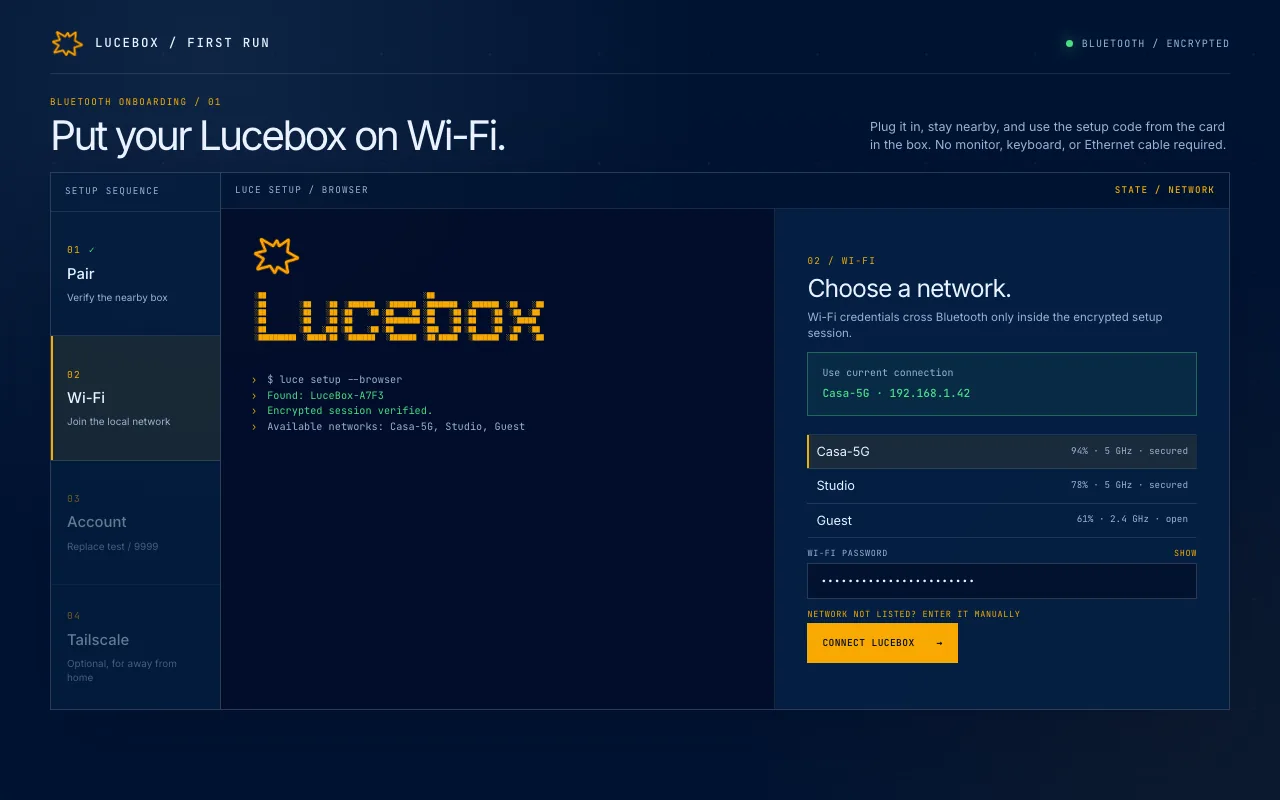
Choose a Wi-Fi network.
The workstation scans nearby networks and lists them in the browser. Pick one, type the password, and it joins. Credentials cross Bluetooth only inside the encrypted session and go straight to the network manager on the workstation, never into a log.
lucebox.com/setup | Address | Answers at http://lucebox.local on your network, and by IP on networks that block multicast DNS |
| Wired | Already on Ethernet? Setup offers "Use current connection" instead of the Wi-Fi list |
| Hidden | Network not listed? Enter its name by hand |
04Setup
Name it and set the administrator.
lucebox.com/setup - Box name
- Shown in Manage and used as the machine name on your tailnet
- Administrator
- Replaces the temporary factory login. Passwords go to the OS over stdin, never through the website
- Access
- Full root access over SSH afterwards, it is your machine
05Setup
Add it to your tailnet. Or skip, and add it later.
lucebox.com/setup - Optional
- Skip it and everything still works on the home network, or add it later from Manage
- Sign-in
- A Tailscale login link opens in a new tab; approve the workstation there
- Laptop
- Tailscale installed on the laptop or phone, signed in to the same account
- Fallback
- A one-off auth key still works, passed as a file and deleted right after use
- Handoff
- Setup ends by opening Manage at http://lucebox.local, or at the tailnet address when Tailscale is on
Private network
Your workstation goes where you go.
Lucebox can join your private Tailscale network during setup. From then on your laptop or phone reaches it over an encrypted tunnel from any network, at home, in the office or on the road, and nothing is exposed to the public internet.
Point Claude Code, Codex, OpenCode, Hermes Agent, OpenClaw, Pi or Open WebUI, or any OpenAI or Anthropic compatible client, at the tailnet address and keep working as if the workstation were on your desk.
- 01 Your laptop or phone Claude Code, Codex, OpenCode or the browser, on whatever network you are on
- 02 Tailscale A WireGuard tunnel between your own devices. No router changes, no account with us
- 03 Lucebox At home or wherever you keep it, answering on private addresses only
Encrypted End to end Every request travels inside the tunnel between your devices and the workstation. lucebox.com never sees the traffic.
Exposure 0 open ports No port forwarding, no public IP, no dynamic DNS. The gateway only advertises private addresses.
Optional Skip or add later On the home network everything works without it. At setup you sign in to Tailscale from a link and approve the workstation, or add it later from Manage.
Part two
Daily use
Everything after the first run happens in Lucebox Manage, the page the workstation serves itself: pick a model, start it, connect an app, read the usage.
06Manage
Start with a read-only check.
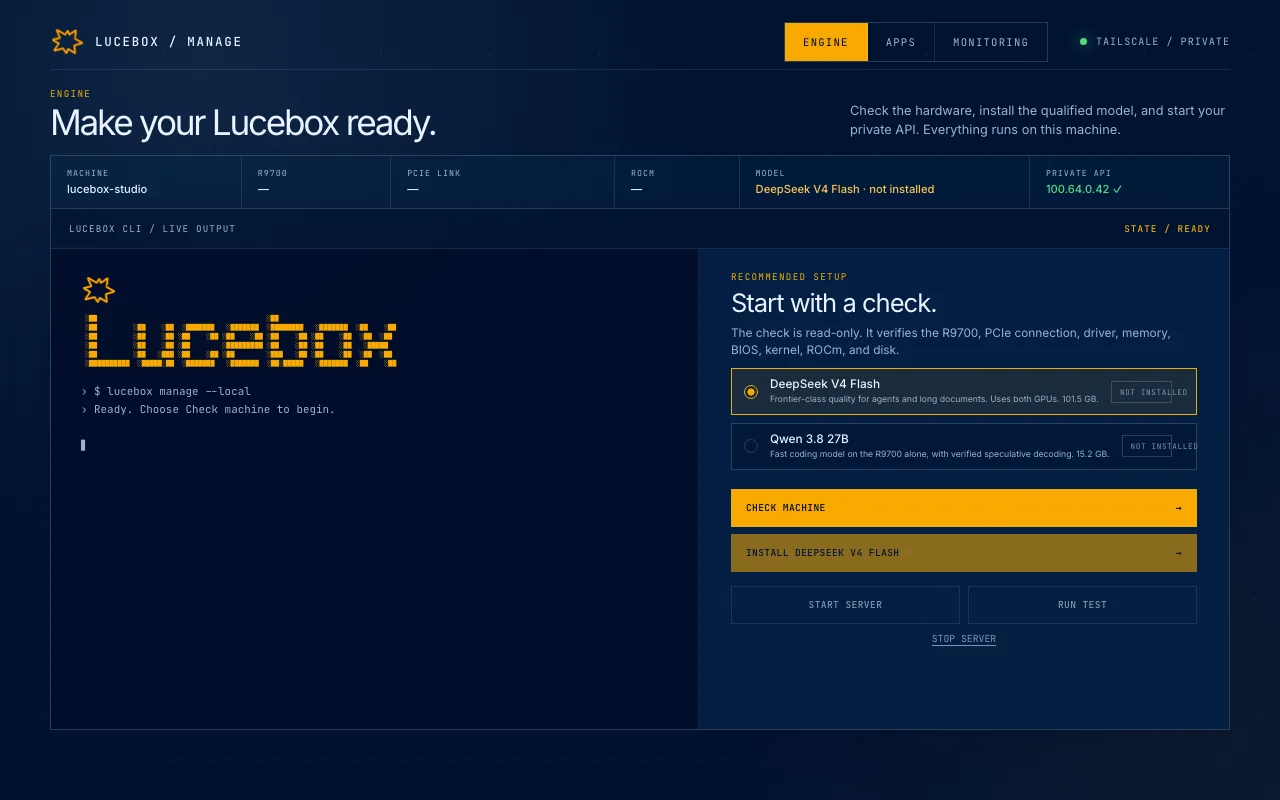
Setup hands the browser to Lucebox Manage, a small web page served by the workstation itself. The first button verifies the R9700, the PCIe link, driver, memory, BIOS, kernel, ROCm, and disk, and prints the real commands and output in a read-only terminal.
Manage, on the workstation | Runs on | The workstation, port 7744. No cloud agent, no remote shell |
| Buttons | Check machine, Install model, Start workstation, Run test. The browser can request only these fixed actions |
| Terminal | Output only. It shows the commands, it never accepts them |
07Manage
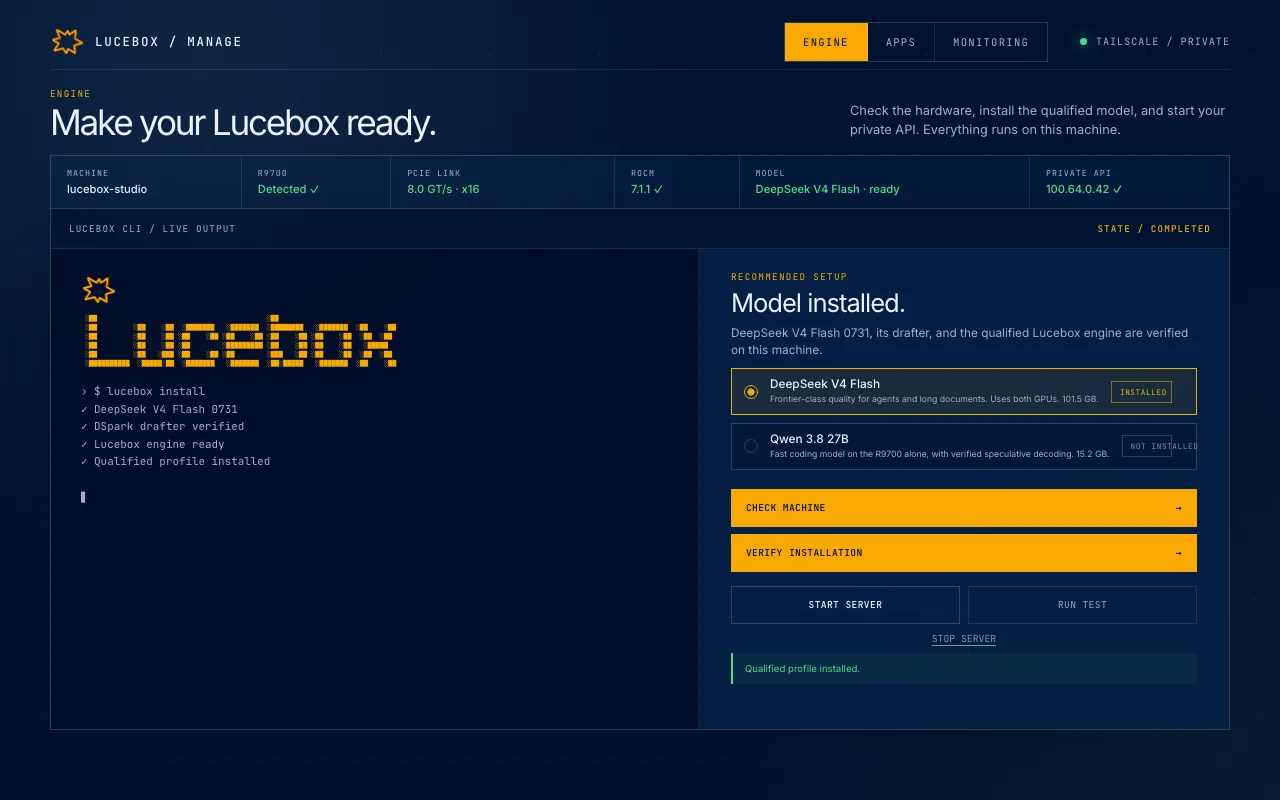
Pick a model. Install verifies what is there and fetches what is missing.
Two qualified profiles ship with the workstation: DeepSeek V4 Flash across both GPUs, and Qwen 3.8 27B on the R9700 alone with verified speculative decoding. Lucebox Mix runs both behind one gateway. Each profile pins its own engine build and drafter, so the two never share a build.
Manage, on the workstation | DeepSeek V4 Flash | Both GPUs, with its DSpark drafter |
| Qwen 3.8 27B | The R9700 alone, speculative decoding |
| Lucebox Mix | Both models at once behind one gateway, routed by model id |
| Downloads | Resume after an interruption, exact hashes verified. An installed profile is reused, never downloaded twice |
08Manage
One click, and the endpoint is live on your network.
Manage, on the workstation - Endpoints
- OpenAI-style and Anthropic-style routes through one gateway, with a copyable address in Manage
- Reach
- Home network and Tailscale. Never the public internet: the gateway only advertises private addresses
- Keys
- A shared key on the Private API card, plus one key per connected app
- Offline
- Runs fully offline once a model is loaded
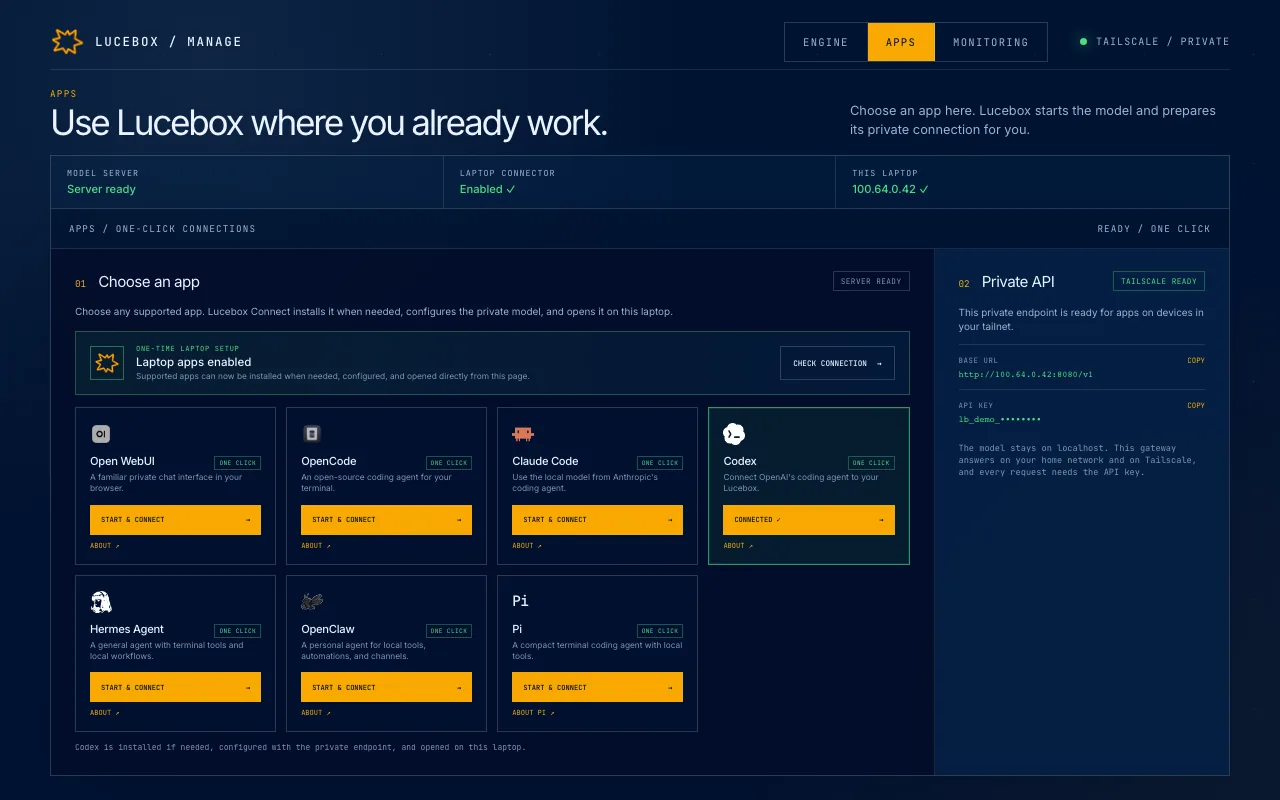
09Apps
Enable laptop apps once. Then every app is one click.
The apps run on your laptop, not on the workstation, and a browser cannot configure another program by itself. Enable laptop apps installs Lucebox Connect, a small bridge with no interface and no background service. From then on, Start & connect on any card starts the model, installs a missing app from its official installer, points it at the private endpoint, and opens it.
Manage, then your laptop | Apps | Claude Code, Codex, OpenCode, Hermes Agent, OpenClaw, Pi, Open WebUI |
| Anything else | Any OpenAI or Anthropic compatible client, with the address and key from the Private API card |
| Lucebox Connect | macOS, Windows, Linux. Runs only when you click a card and exits after opening the app |
| Tickets | A two-minute single-use ticket per click. The API key never appears in the URL |
10Monitoring
Tokens by app and by model. Never the prompts.
Manage, on the workstation - Kept
- Time, app, model, tokens read and generated, decode time, duration, status
- Not kept
- Prompts, replies, or anything that leaves the workstation
- Live
- CPU, memory, GPU memory, temperature and disk, right now
- Retention
- Rows older than 400 days are pruned automatically
- The machine looks wrong
- Run Check machine again. It re-reads the GPU, the PCIe link, driver, memory, BIOS, kernel, ROCm and disk, and prints every command with its output
- An app cannot reach it
- Run test sends a short generation through the private route, so you know whether the endpoint or the app is at fault
- Anything else
- Write to us, or book a call and we look at it with you
Order
Ready to run the day it arrives, from $5,999.
Both tiers ship with the engine and the qualified profiles installed. The Business tier adds a year of Lucebox Engine Pro: we do the setup, the accounts and the app connections with you.